Ordering the First Additional Tray for a Patron
If a patron wants additional food after their order has been submitted, you can order an additional tray for them. This process is different from creating a second (or more) additional trays.
Note: There is no limit to the number of additional trays you can order for a patron in a meal period.
To order an additional tray for a patron:
- On the patron record, select the date for which you want to order an additional tray.
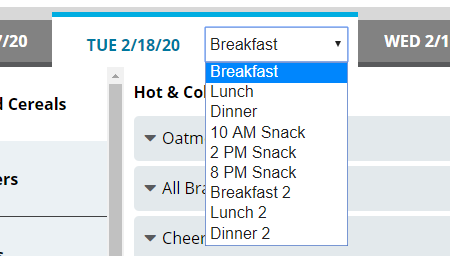
- In the list, select the appropriate meal.
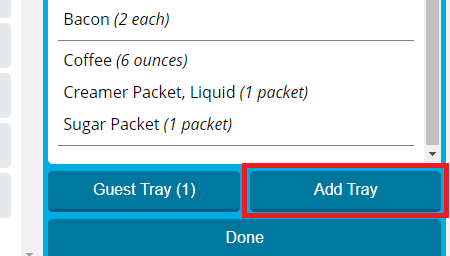
- Under the Selected Items list, click Add Tray. The Selected Items list and Add Tray button update to display the current tray number.
- To add a menu item to the patron's additional tray:
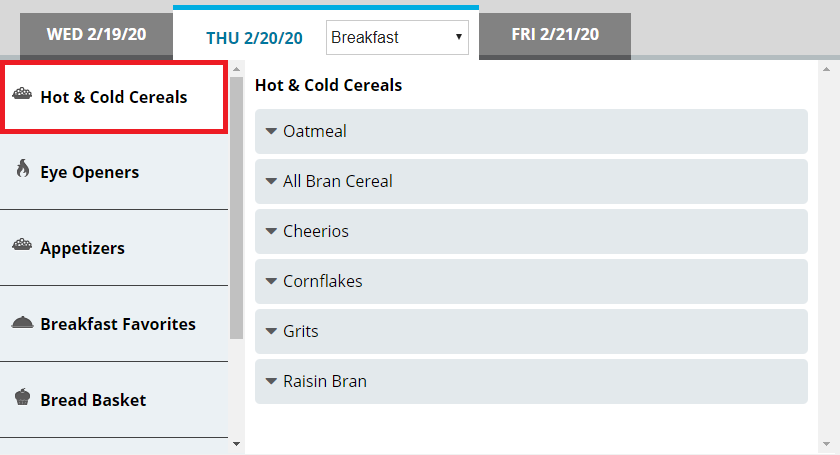
- On the left menu, select the category (publishing group) for which you want to view menu items.
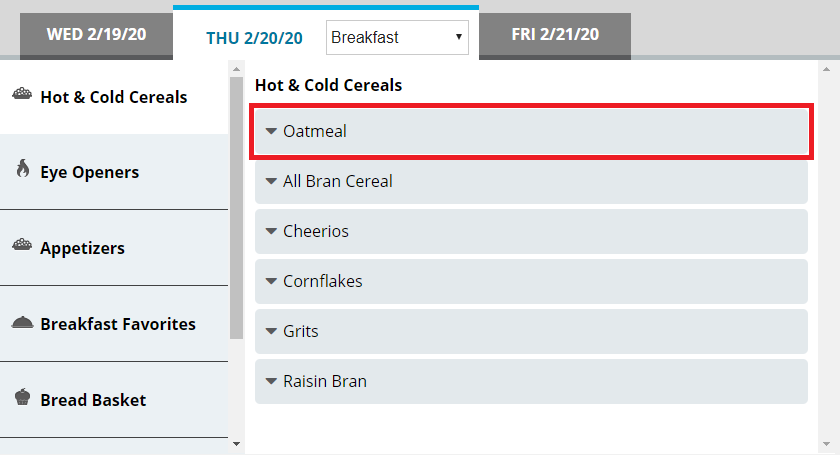
- In the center section, select the menu item you want to add.
- If you want to increase of reduce the portion size to order, continue as follows:
- If you want to increase the portion size of the item, click
 .
. - If you want to reduce the portion size of the item, click
 .
.
- If you want to increase the portion size of the item, click
- Manage the selection as needed:
 To set a custom portion size for the selection
- Click
 to expand the menu item.
 - Click Custom Quantity.
- In the Custom Quantity box, enter the portion size of the item that you want to order for the patron.
- Click Save.
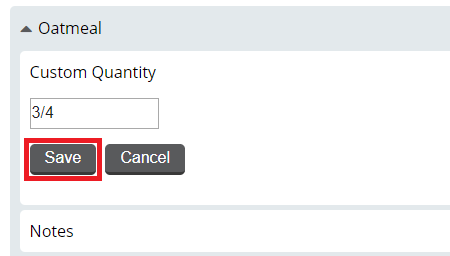
Tip: You can enter fractions of a portion either as a fraction (for example, 1/2) or as a decimal (for example, .5).To add a note for the selection- Click to expand the menu item.
- Click Notes.
- In the Notes box, enter the note you want to add.
- Click Save.
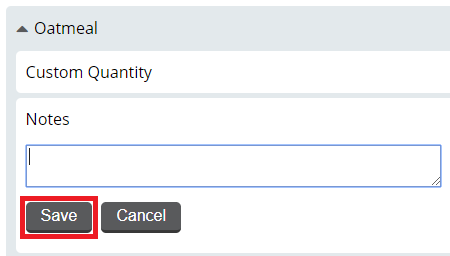
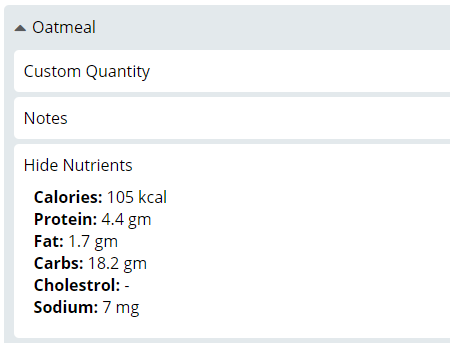
To view nutrients for the selection- Click to expand the menu item.
- Click View Nutrients. The option expands to display nutrient information for the menu item.
 To lock the selection
- Click to expand the menu item.
- Click Lock Item.
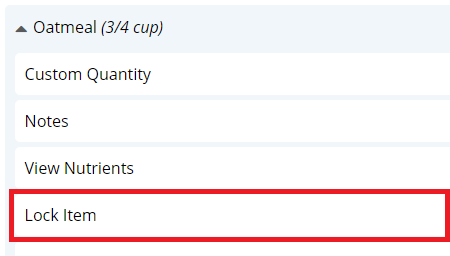
A lock icon displays next to the selection indicating it is locked.
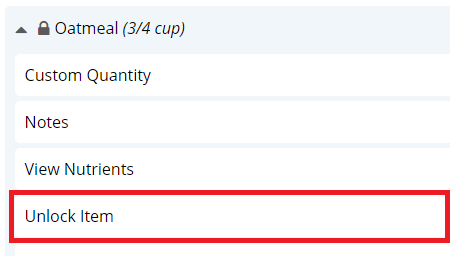
To unlock the selection- Click to expand the menu item.
- Click Unlock Item.
The lock icon is removed, indicating the item is unlocked.
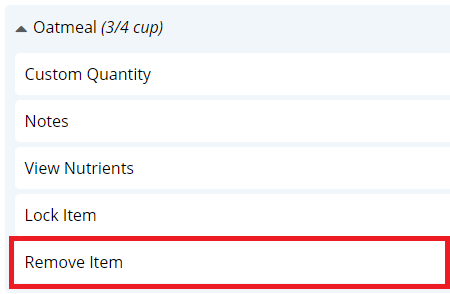
To remove the selection- Click to expand the menu item.
- Click Remove Item.
The selection is immediately removed from the Selected Items list.
- Click
- To add a menu item not on the menu to the patron's additional tray:
- On the left menu, click Request Items.
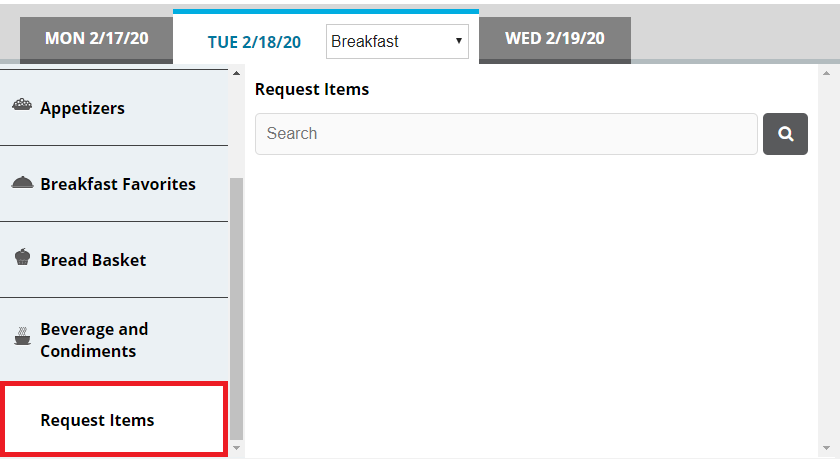
- In the search box, enter a keyword for the item for which you want to search.
- Click
 . You can also press Enter. The search results appear.
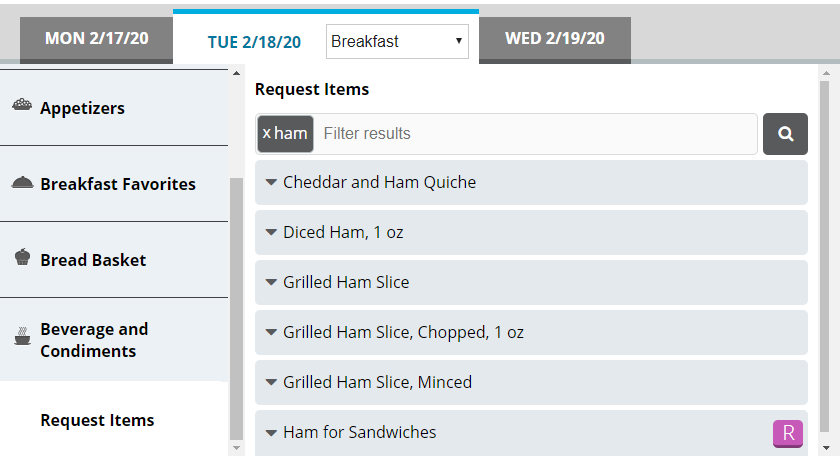
- If you want to filter the displayed search results, in the search box, enter an additional keyword with which to filter. The results filter as you type.
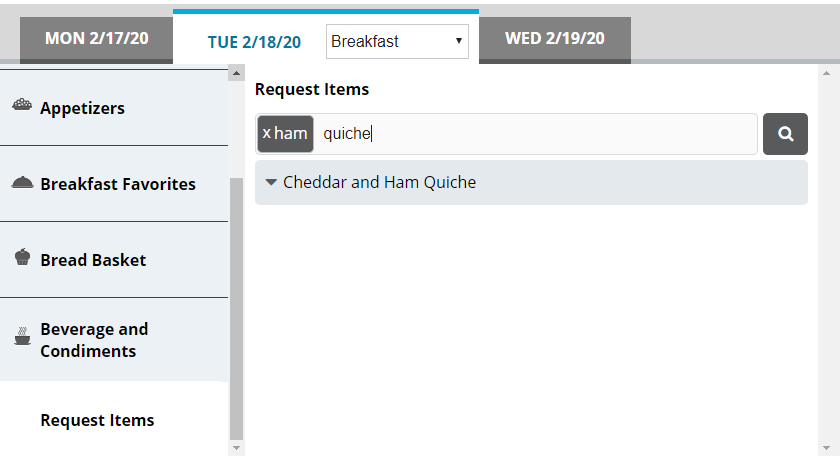
- From the results, select the request item you want to order. The item is added to the Selected Items list.
- On the left menu, click Request Items.
- Repeat steps 4–5 until all menu items you want to order have been added to the Selected Items list.
- If you want to add a note to the meal, continue as follows:
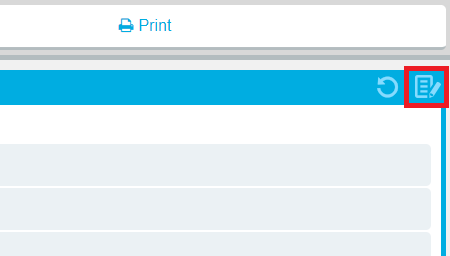
- In the top-right corner of the Selected Items list, click the add note icon. The Meal Notes dialog appears.
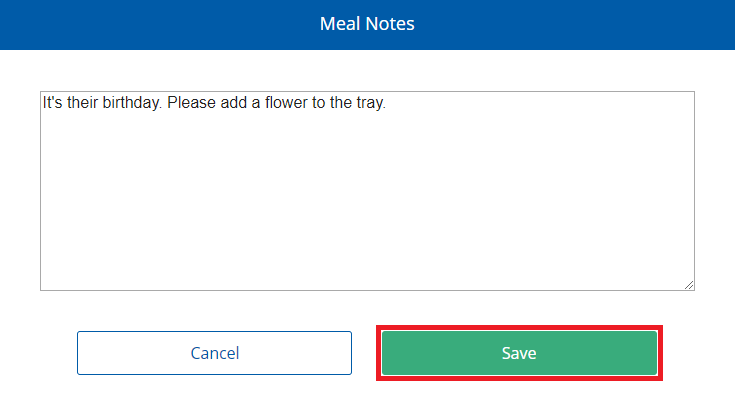
- In the box, enter the note you want to add for the meal.
- Click Save.
 Tip: When a meal has a note added to it, a checkmark icon appears on the add note icon.
- In the top-right corner of the Selected Items list, click the add note icon. The Meal Notes dialog appears.
- When you are done making selections, order the additional tray as follows:To print a ticket immediatelyTo send a rush ticket
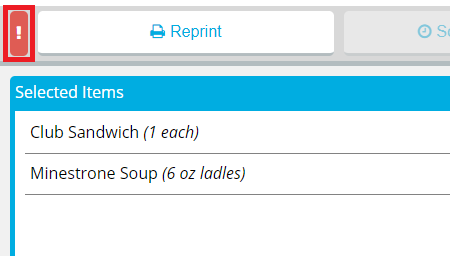
- If a ticket has already been printed for the meal, the Reprint Ticket dialog appears. Continue as follows:
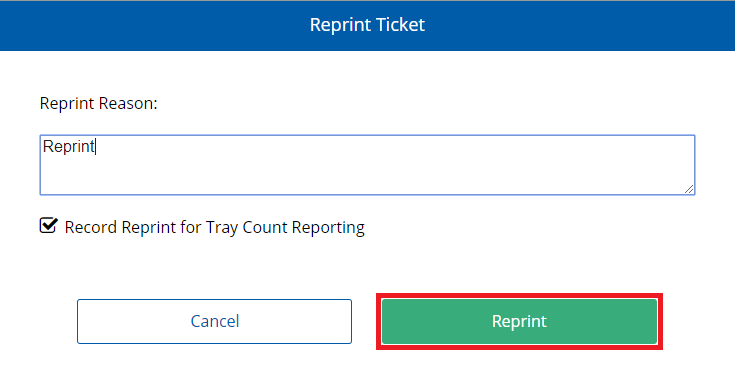
- In the Reprint Reason box, enter a reason for why the ticket was reprinted.
- If you do not want the reprint to be recorded in tray count reports, click to clear Record Reprint for Tray Count Reporting.
- Click Reprint.
If a ticket has not yet been printed for the meal, it will be printed immediately.
To schedule meal delivery for a later time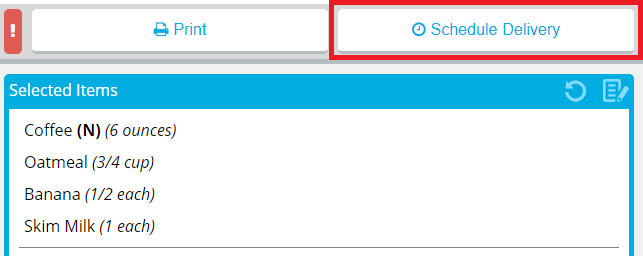
- In the Schedule delivery for a specific time list, select the time you want the patron record to be delivered.
- Depending on the time you select, the ticket for the meal will be printed with enough lead time to ensure that the meal will be delivered at the selected time.
- If your facility uses Production Control, the number in parentheses is the number of delivery slots available at that time. If no slots are available, the time displays Full instead of a number.
- If the time slot you want to select is full and you still want to deliver at that time, click to select Override.
- Click Schedule Delivery.
- If you want to change the scheduled delivery time, repeat the previous steps, selecting a different available time.
Notes:The Schedule Delivery button changes to display the current scheduled delivery time.
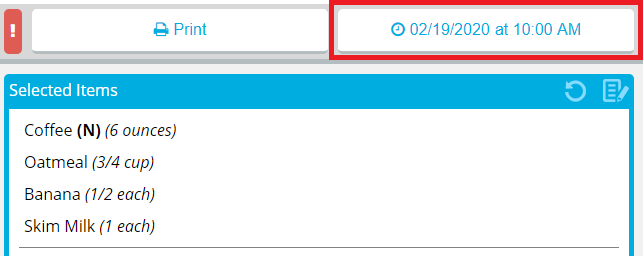 Note: Printing the ticket when a delivery time is scheduled will cancel the scheduled delivery time.To reprint a ticket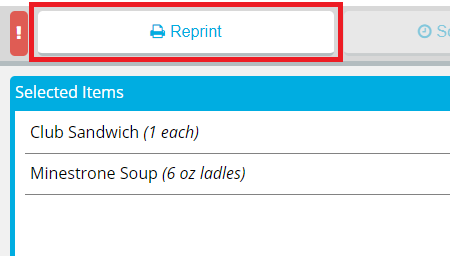
- In the Reprint Reason box, enter a reason for why the ticket was reprinted.
- If you do not want the reprint to be recorded in tray count reports, click to clear Record Reprint for Tray Count Reporting.
- Click Reprint.
Note: The displayed tray number includes the original tray for the patron's meal. For example, if (2) is displayed, that indicates the original tray and one additional tray.