Adding a Widget to a Dashboard
You can add a widget to a dashboard on either the Add Dashboard or Edit Dashboard page.
To add a widget to a dashboard:
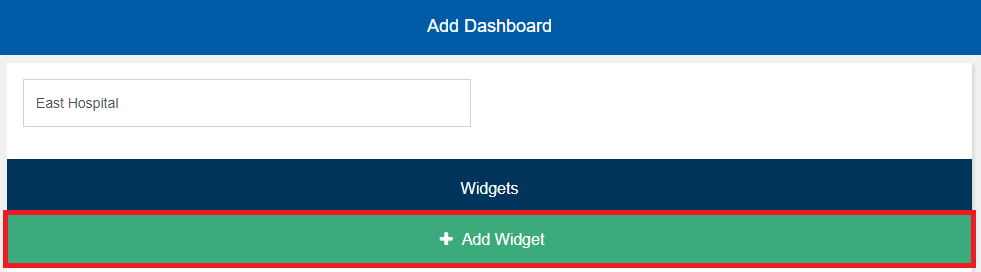
- Click Add Widget. The Select a widget to add dialog box appears.
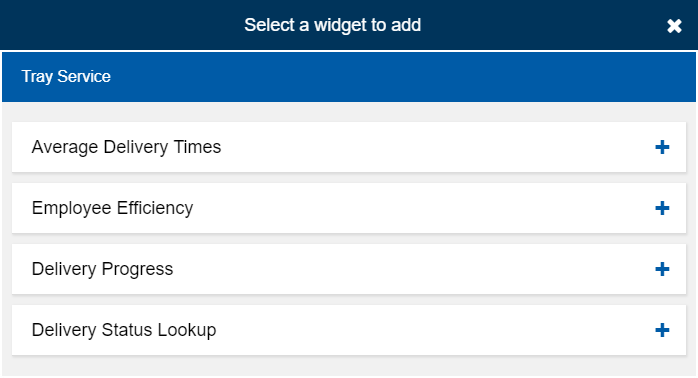
- Select the widget you want to add to the dashboard. The associated screen for configuring that widget appears.
- To set up the widget filters:
- In the Date Options list, select the date(s) you want to display data from in the widget.
- In the Meals list, select the meal(s) you want to display data from in the widget.
- In the Menus list, select the menu(s) you want to display data from in the widget.
- In the Room Locations list, select the room(s) you want to display data from in the widget.
- If you want to filter using special services:
- In the Special Services list, select the special service(s) you want to filter.
- If you want to exclude the selected special service(s), click to select Exclude Selected Special Services.
- If you want to include the selected special service(s), click to clear Exclude Selected Special Services.
- In the Kitchens list, select the kitchen(s) you want to display data from in the widget.
- In the Employees list, select the employee(s) you want to include in the widget..
- In the Delivery Stages list, select the delivery stage(s) you want to include in the widget.
Note: If you inactivated any delivery stages, select the appropriate delivery stage selection set to ensure that inactive stages are not displayed in the widget. - To select the widget options:
- Under Ticket Type, select the ticket type you want to display data for in the widget:
- For kitchen tickets only, click to select Kitchen Tickets.
- For tray tickets only, click to select Tray Tickets.
- For both ticket types, click to select Both.
- Under Include, select the tray types you want to display data for in the widget:
- For patient trays only, click to select Patient Trays.
- For guest trays only, click to select Guest Trays.
- For both tray types, click to select Both.
- Under Ticket Type, select the ticket type you want to display data for in the widget:
- When you are done setting up the widget, click Save.
For more information on the available widgets in Operations Connect, refer to Available Widgets.
Note: Not all of the following filters and options are available for all widgets.