Closing a Worksheet
You can close a worksheet to prevent additional edits from being made to the items or recorded amounts in the worksheet. Once all worksheets in an inventory are closed, the inventory can be closed as well.
Note: Closing a worksheet does not enter the recorded counts into Hospitality Suite. That only happens when the entire inventory is closed.
To close an open worksheet:
- Click Inventory > Edit Review. The Physical Inventory List dialog box appears.
- Select the open inventory in which you want to close a worksheet.
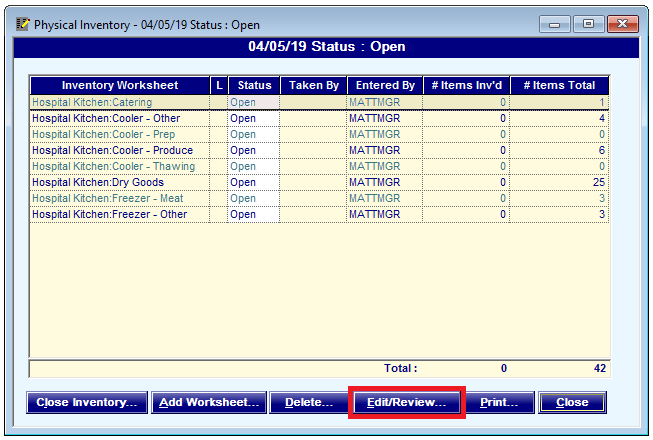
- Click Select. The Physical Inventory dialog box appears.
- Select the worksheet you want to close.
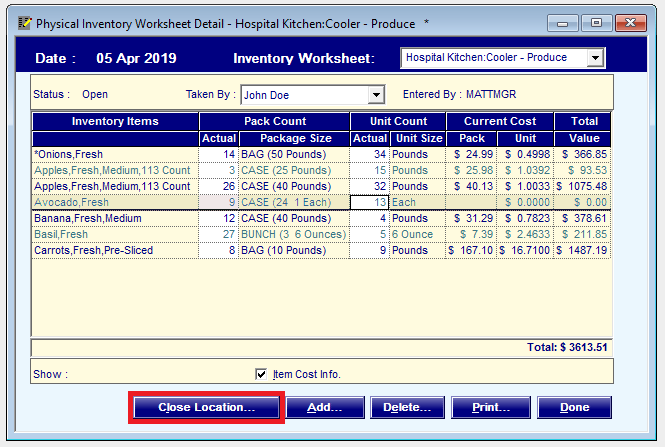
- Click Edit/Review. You can also double-click the worksheet. The Physical Inventory Worksheet Detail dialog box appears.
- Click Close Location.
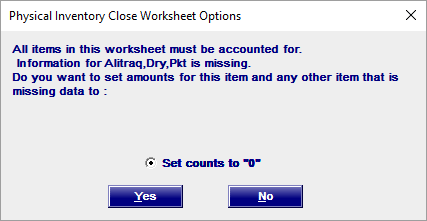
- If the worksheet is missing counts for any items, the Physical Inventory Close Worksheet Options dialog box appears. Continue as follows:
- If you want to set the counts for any items without counts to 0, click Yes. The missing counts are set to 0 and the worksheet is closed.
- If you want to enter counts for any items without counts, click No.
- If the worksheet is filled out completely, a confirmation message appears. Click Yes.

Tip: If you need to update the items or recorded amounts in a closed worksheet, as long as the inventory is still open, you can re-open the worksheet.